
Getting Started
Welcome to the Shule App! This guide will help you get started with the setup process and explore the app’s key features.
- Step 1: Access it via your browser.
- Step 2: Register your account or log in using provided credentials.
- Step 3: Follow the onboarding steps to customize your preferences.
Introduction
The Shule App is a comprehensive school management system designed to handle student records, exams, fee structures, and communication tools efficiently.
Login
The login module ensures secure access to the Shule App. Follow these steps to log in:
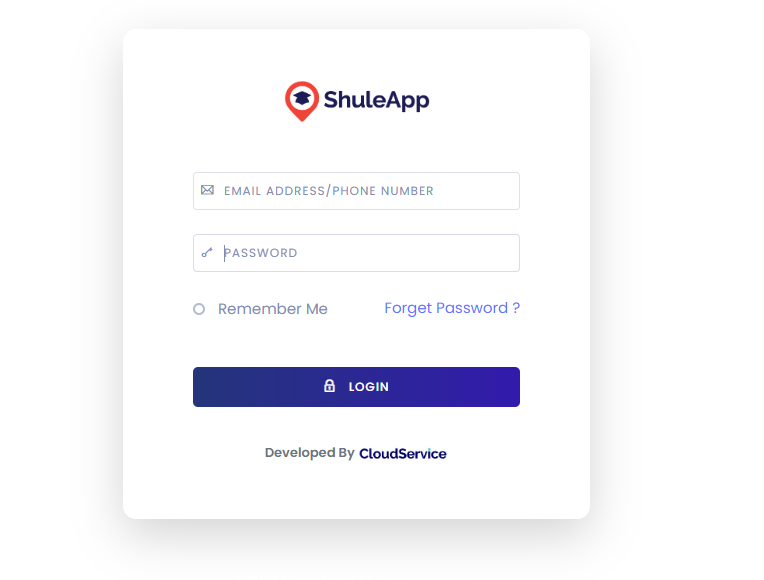
- Press the Login button to access your dashboard.
- Forgot Password? If you forget your password, click the "Forgot Password" link below the login form.
Note: For additional security, ensure your password is strong and not shared with others. If you experience login issues, contact technical support.
Dashboard Overview
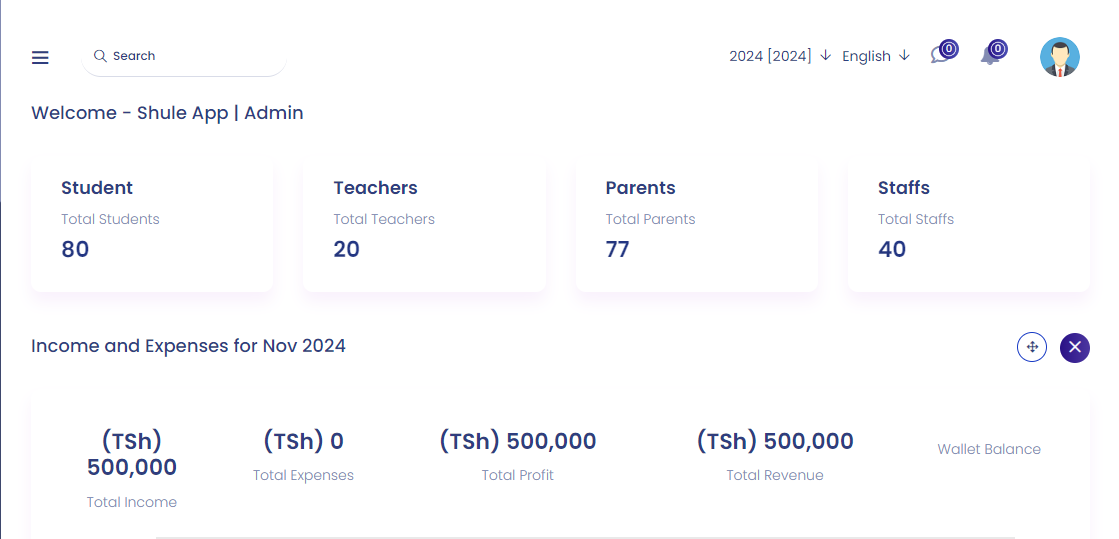
The Shule App dashboard provides an overview of the system's key metrics, including the total number of students, teachers, parents, and staff. It also displays income and expense statistics. You can also view income and expense details for the current month:
Administration
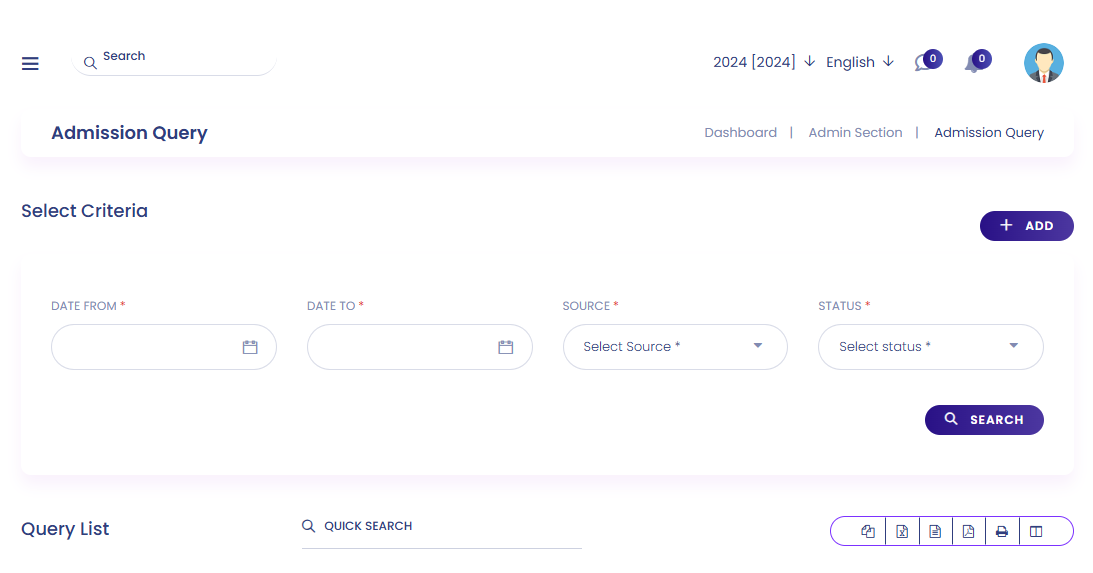
The Administration section of the Shule app allows administrators to manage users, oversee school operations, and ensure smooth communication. Key tasks include handling queries, managing visitor logs, processing postal receipts and dispatches, and overseeing staff activities.
- In admission query, any query will be collected including date, source and status.
Postal & Communication
- In postal receive, here will be a list of all received letters.
- In postal dispatch, records of all transferred letters are kept.
- In visitors book, names and purpose of visits will be recorded.
- In complaints, the complaint source and other details will be recorded.
- In admin setup, the admin can configure their own settings within the system.
- Student certificates are available here and can be generated with a background of your preference.
Receptionist Access
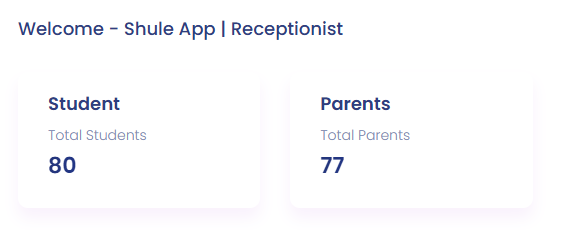
Receptionists access the Shule app using their email or phone number to manage:
- Access with collecting admission queries.
- Access the visitors book to view all visitors.
- Access to all complaints within Administration.
- Access postal received and dispatched records.
- Access phone log records (incoming & outgoing).
- Access to add a new student, view student list, and disabled students.
- Access to view staff attendance under human resource management.
- As normal staff, has access to applying for leave.
- Access to chatbox to communicate with others.
Academics
The Academics section allows administrators and teachers to manage subjects, assign optional courses, and select classes for students.
- Add optional subject to a student.
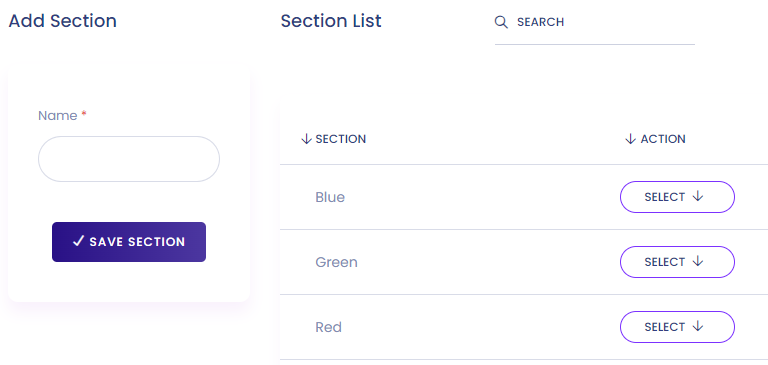
- Add section within a class.
- Add a class, name that class and select a pass mark.
- Assign subject to a specific class.
- Assign a class teacher to a specific class.
- Assign subject to a specific teacher.
- Add classroom to see the number of classrooms.
- View the school schedule on class routine.
Study Material
- Upload content (title and type required) and choose availability.
- Upload an assignment and view the list of uploaded assignments.
- See a syllabus list.
- See other downloads.
Lesson Plan
- Add a lesson plan in a specific subject and class, view list, edit.
- Add a topic, view list of topics and lessons per subject.
- See list of all topics.
- Create a lesson plan.
- See list of all lesson plans.
Bulk Printing
Used for printing large amounts of copies:
- Printing ID cards.
- Printing parent pickup cards.
- Printing student certificates.
- Printing staff payroll.
- Printing fees invoice.
- Settings for invoice bulk printing.
Teacher Access
A teacher has access to the Shule app using their phone number or email address.
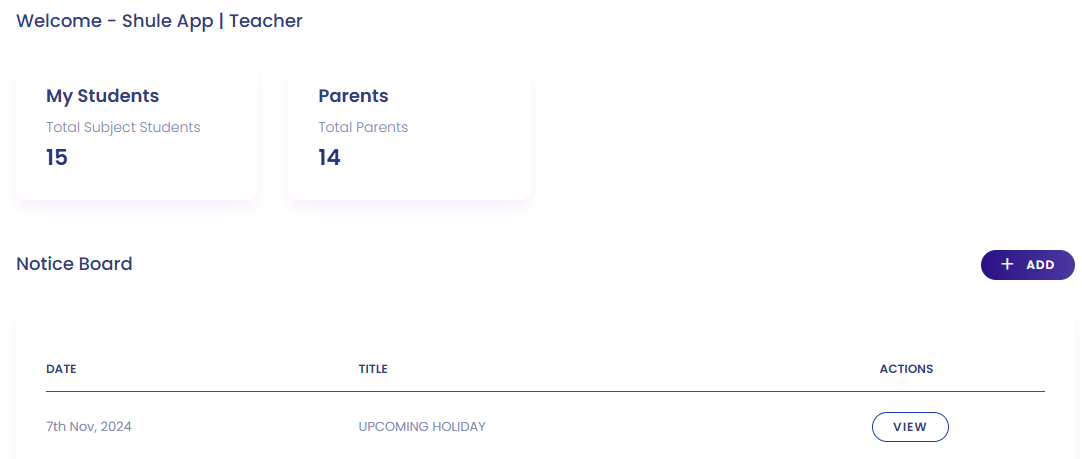
- The teacher dashboard gives access to number of students, parents, school notice board, and calendar.
- Access to academics where subjects, optional subjects, sections, and routines can be managed.
- Access to study material where they can upload content, syllabus, and assignments.
- Access to lesson plan where topics, lesson overview, and new lessons can be created.
- Access to student information including student list, attendance, and groups.
- Access to behavioral records to document incidents.
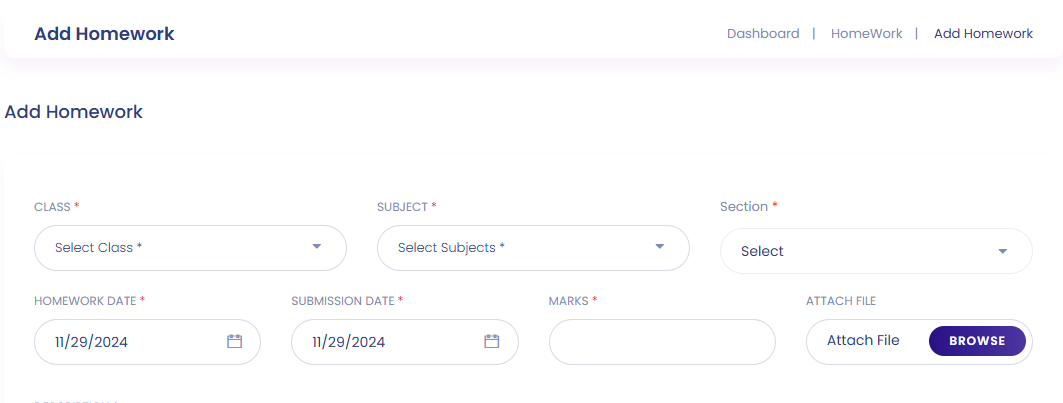
- Access to homework where they can upload, view list, and write homework report.
- Access to exam section for setup and marksheet report.
- Access to teacher evaluation reports.
- Access to end term report.
- Access to chatbox to chat with others.
- Access to communication where school calendar is found.
Student
The Shule App simplifies student management, allowing you to handle student data, monitor academic progress, and maintain a well-organized school database.
Student Management
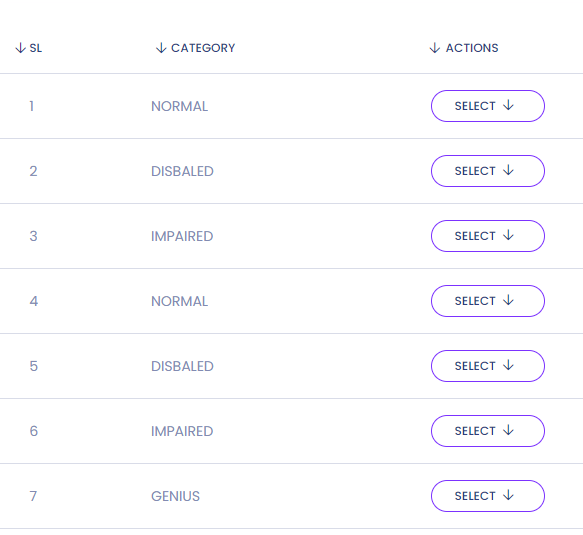
- Student category where you can categorize your student based on different criteria.
- To add a student, fill personal information and sibling information if available.
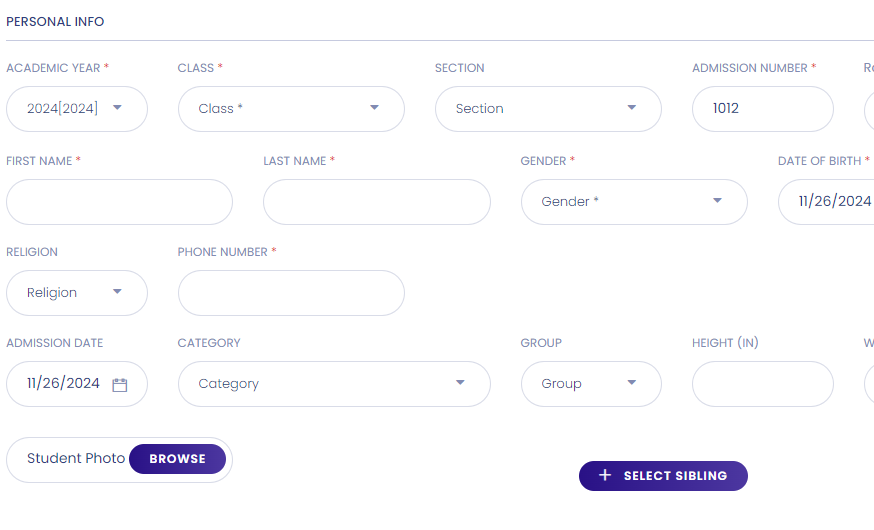
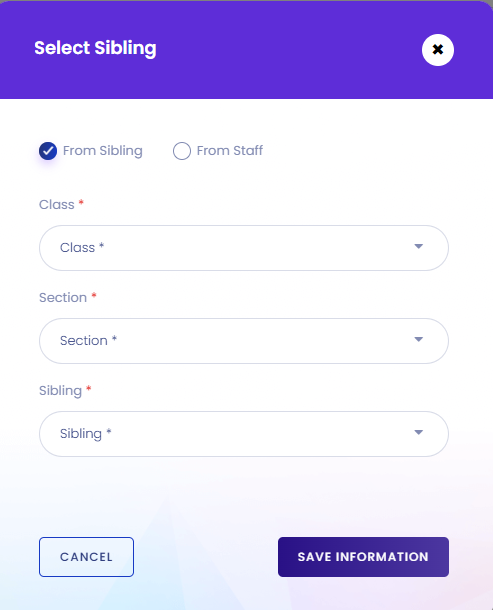
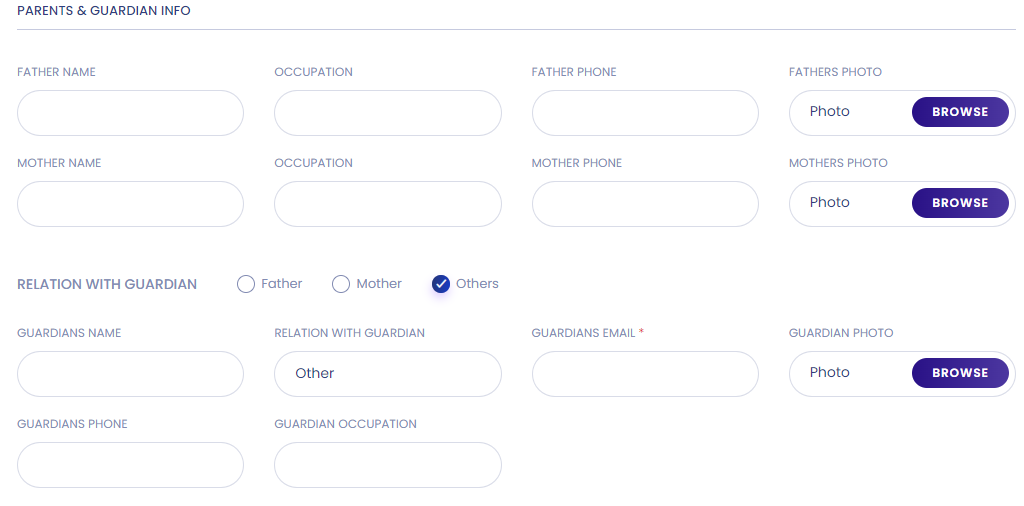
- Note: Parent number will be a username for them to log in. The parent set as guardian will have access to the parent account.
Delete Student Record
- Before deleting a student, first a student has to be disabled.
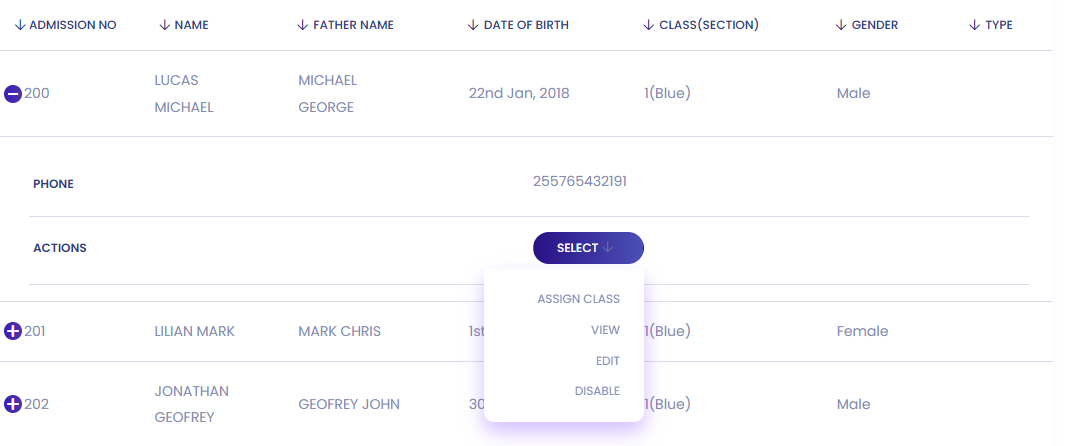
Admin Student Lists
Also an admin has access to the following:
- List of unassigned students
- List of all students
- Student attendance
- Subject wise attendance
- List of student groups
- List of promoted students
- List of disabled students
- List of exported students
Student Portal Access
A student has access to the Shule App by providing phone number, email or admission number.
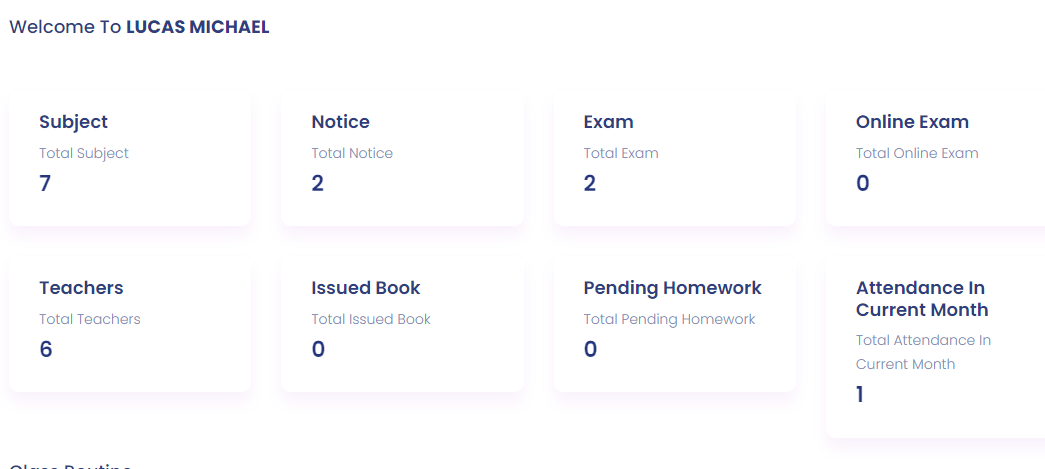
- The student dashboard shows number of subjects, teachers, issued books with homework assigned.
- Access to profile to show personal information with roll and admission number.
- Access to fees to show the amount that has been paid.
- Class routine to show the class schedule.
- Access to lesson plan of teachers.
- Access to list of homework assigned.
- Download center where assignments, syllabus and other documents can be downloaded.
- Attendance arranged by months.
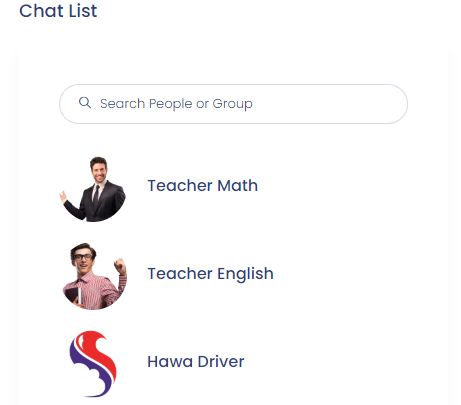
- Access to chat box to communicate with other people.
- Access to examination timetable and results.
- Access to notice board to stay updated with school information.
- Access to school calendar.
- Access to list of subjects.
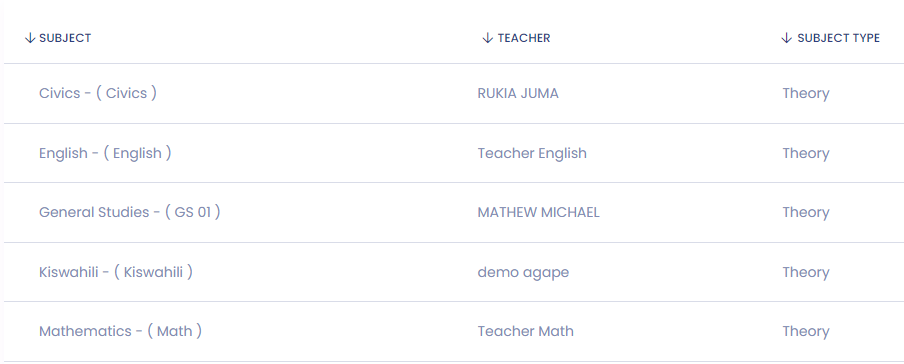
- Access to list of teachers.
- Access to the transport route he/she takes.
- Access to the library to show the number of books issued.
- Access to dormitory.
Fees
- Fees group (e.g., transport or school fees)
- Fees type
- Fees invoice
- View uploaded slips
- Bank payment
- Fees carry forward (fees that are not paid)
Behavioural Records
- Record the incident of the student.
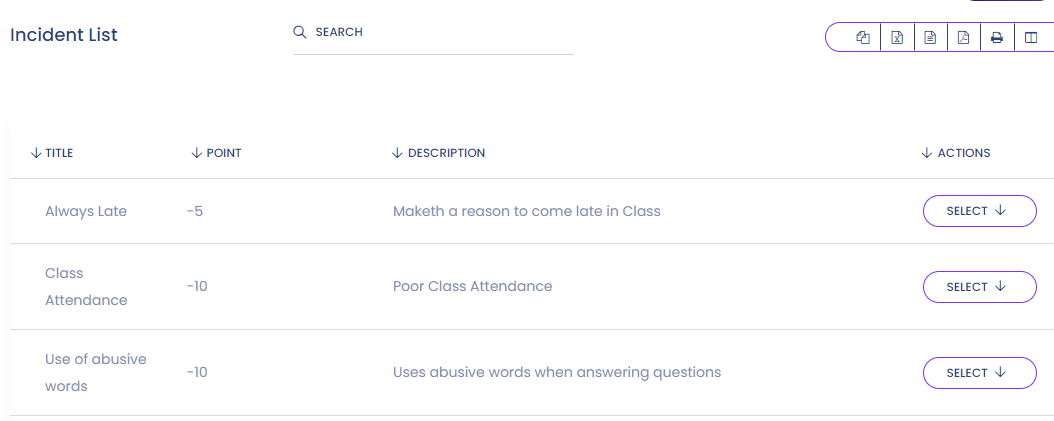
- Admin can assign incident.
- Record student incident report.
- Record behavioral report.
- Record class section report.
- Record incident wise report.
Homework
- Add homework to student.
- See the list of homework.
- See the homework report.
Library
- See the list of book categories.
- Subjects.
- Add book to the library.
- See the list of books.
- Add a new member to the library.
A member should be given an ID.
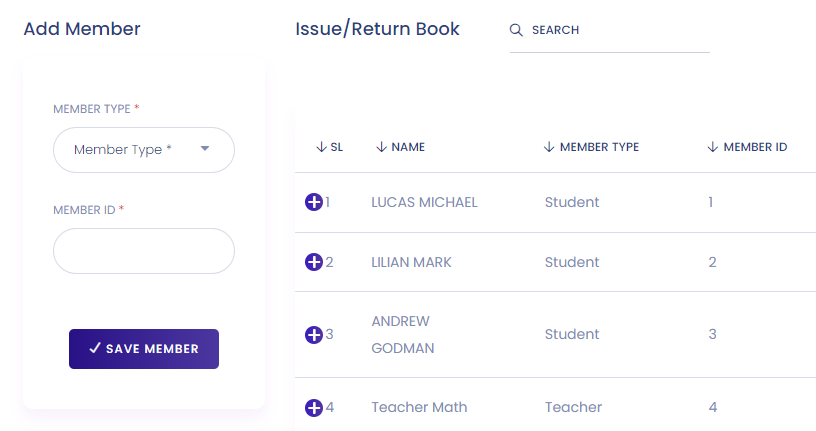
- Add all issued books.
- Return or issue a book.
Librarian Access
The librarian has access to Shule App by providing email or phone number.
- Librarian has access to total number of students.
- Access with all book categories.
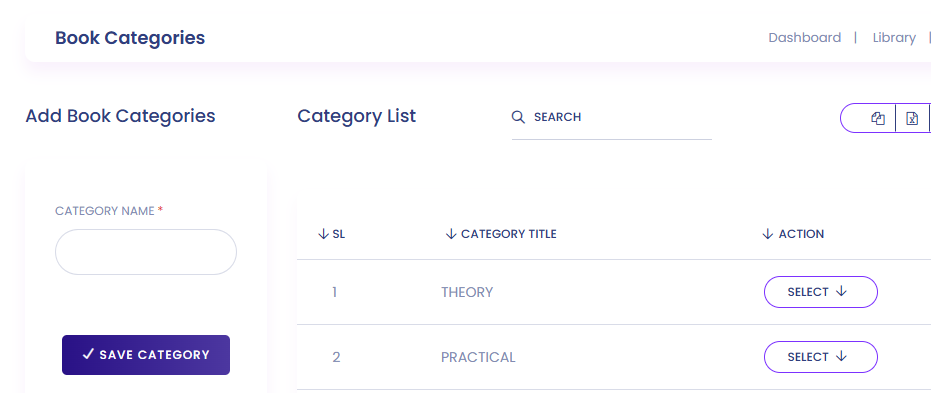
- Access to add a book to the library.
- Access with the list of books.
- Add new member to the library.
- List of all issued books.
- Issued books that have been returned.
Transport
Here admin can assign all routes.
- Assign vehicles to specific routes.
Driver can access Shule App by providing email or phone number.
- In dashboard, driver can see the number of students to carry and the route to take.
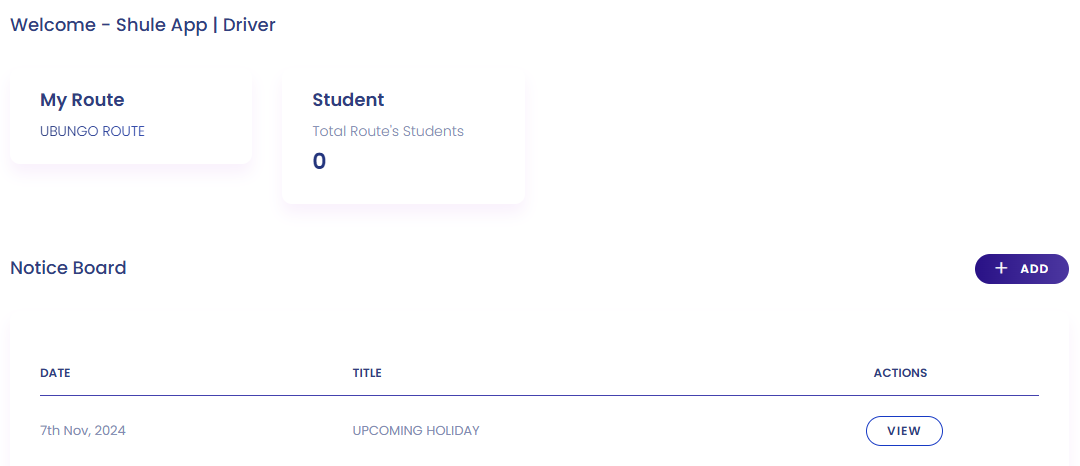
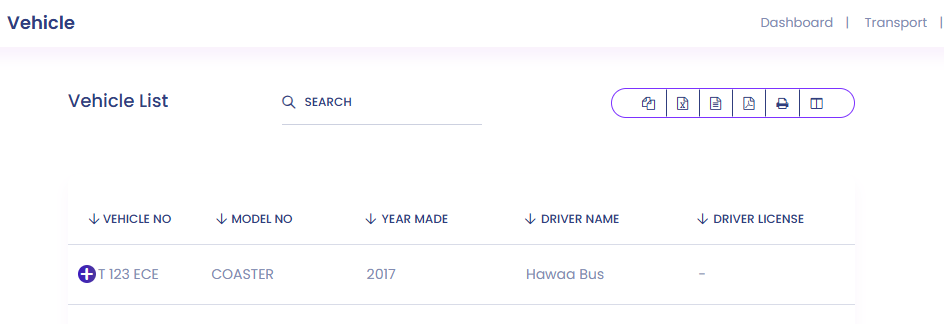
- Driver has access to see the vehicles and route assigned.
Dormitory
- Choose a room type.
- See the list of dormitories.
- See the rooms within the dormitories.
Parent Portal
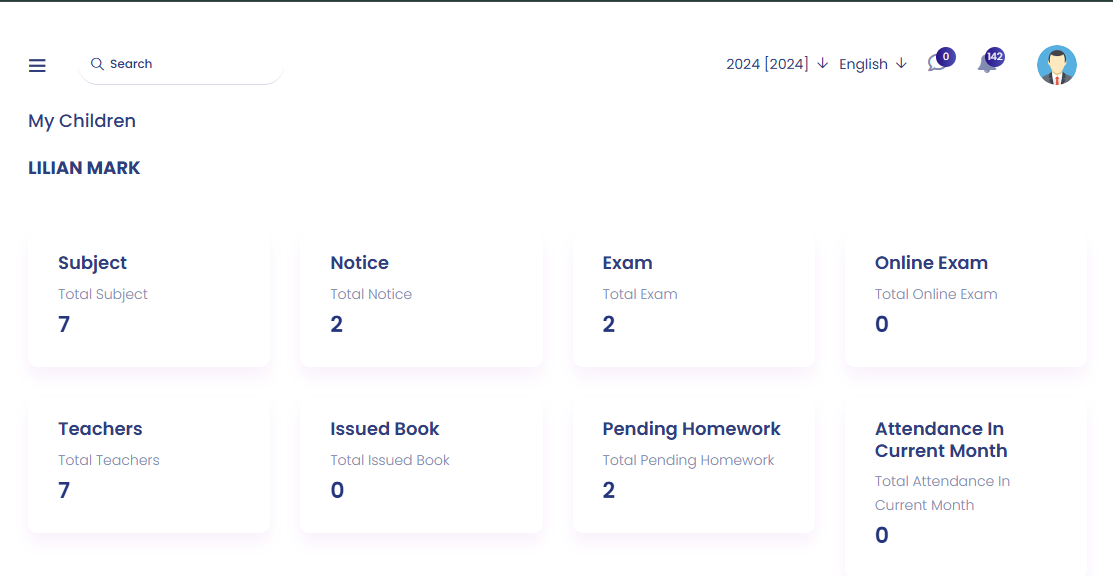
The Parent Portal is designed to foster collaboration between schools and parents by providing a secure platform for accessing important student information.
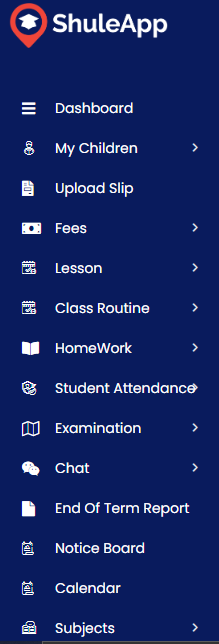
- Parents can view their child’s academic performance, including grades in examination sidebar.
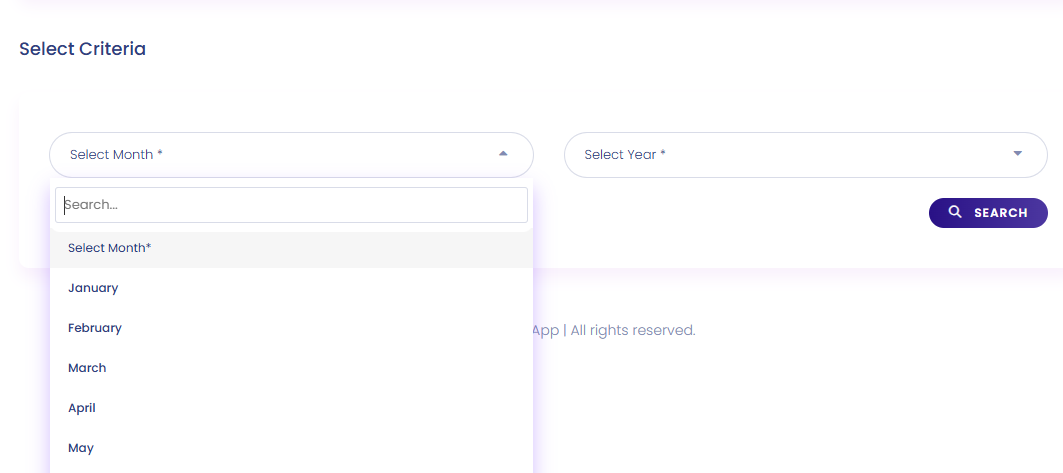
- The portal allows parents to track their child's attendance by selecting a month and searching for the attendance.
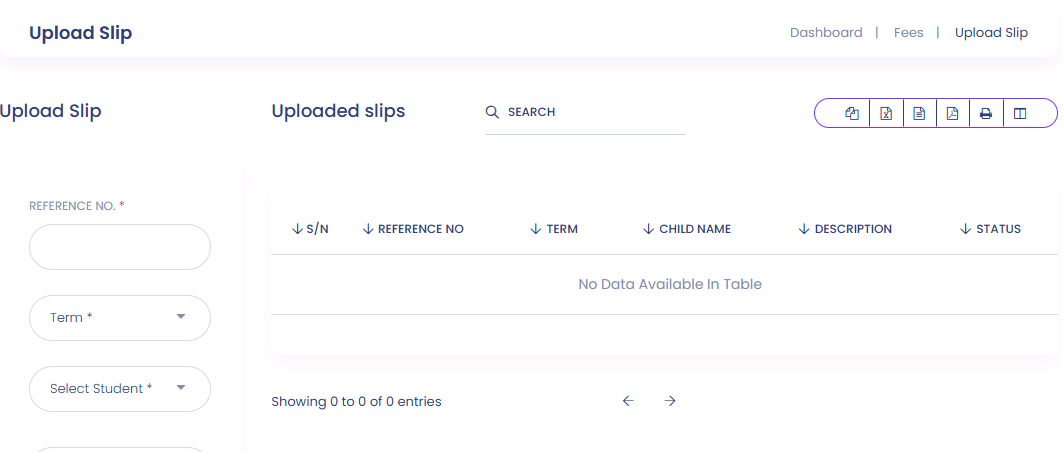
- Parents can access fee-related information, including payment status and uploading slips.
- The portal provides a direct channel to communicate with teachers and school administrators.
- Parents can stay updated on school events and activities.
EXAM
- Mark grades
- Set the type of an exam
- Setup the exam
- Set the exam schedule
- Set attendance for an exam
- Marks register
- Sending marks by SMS
- Mark sheet report
Exam Plan
- Admit card
- Set a sitting plan for the exam
Human Resource
- Designate role to staff
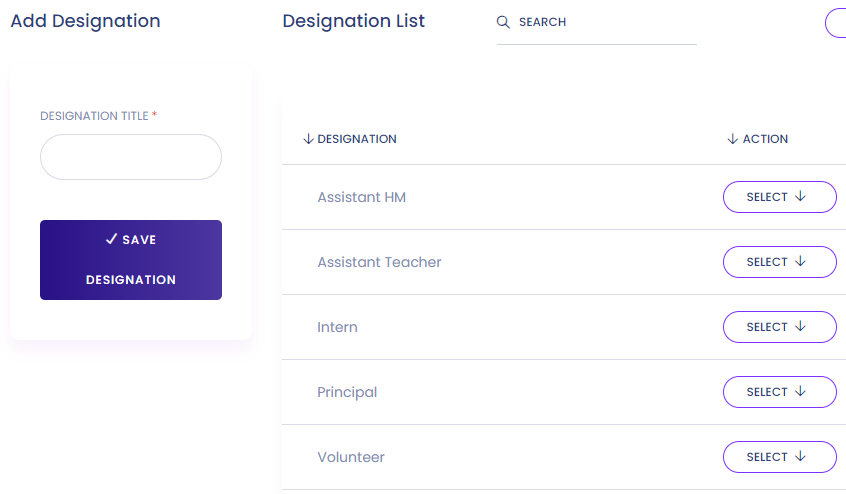
- Assign department
- Add a new staff
- Add a staff within directory
- Record staff attendance
- Prepare staff payroll
Teacher Evaluation
- List of approved evaluation report
- List of pending report
- Teacher wise evaluation report
Leave
- Assign a type of leave
- A brief summary of leave
- Approve leave request
- List of pending leave request
Role & Permission
Define role and permission for staff.
Wallet
- A list of pending deposit
- A list of approved deposit
- A list of rejected deposit
- All transactions made
- Refund request
In a wallet you can view:
Accounts
- List of chart accounts
- Bank accounts
- The amount of income received
- Profit & Loss
- Expenses made
- Amount of funds transferred
In Accounts you can view:
Inventory
- List of item category
- Item list
- Item store
- The list of suppliers
- List of items
- Item received
- Item sell
- List of items issued
In Inventory you can view:
Accountant Access
Accountant has access with Shule App by providing either Email address or phone number.
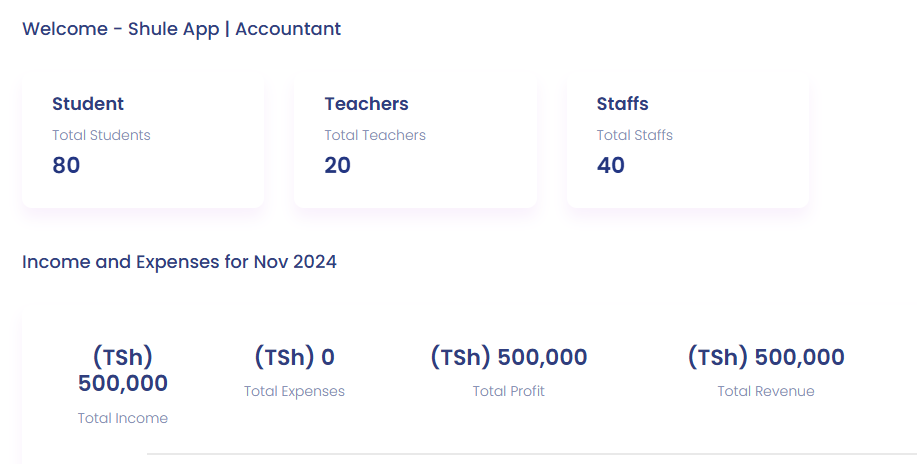
- The Accountant dashboard has access with student, teacher and other staff also the amount of income and expenses for particular month
- Access with Administration issue to view postal received or dispatched
- Access with bulk printing for printing large copies of payroll and fees invoice
- Access with student information to view number of students and list of disabled students
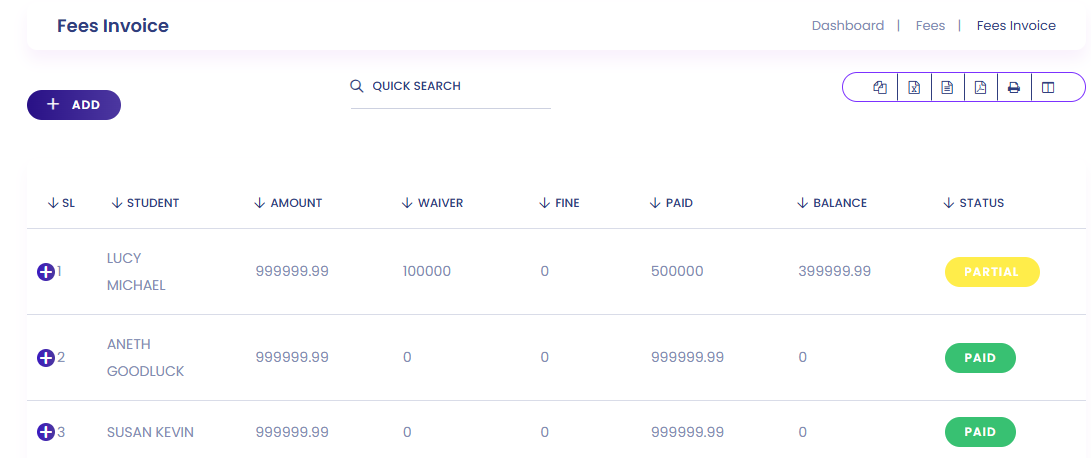
- Access with fees information (group, type, invoice, view uploaded slip, Bank payment and fees carry forward)
- Access in human resource where they can add staff, view staff attendance, directory and view staff payroll
- Access to apply leave as a normal staff
- Access to wallet where they can view pending, approved, rejected deposits, wallet transactions and make request for funds
- Access to account where all items of accounts like profit & loss, expenses and income can be found
- Access with a calendar to remain updated
- Access to report like student, staff, fees and accounts reports
Login Credential
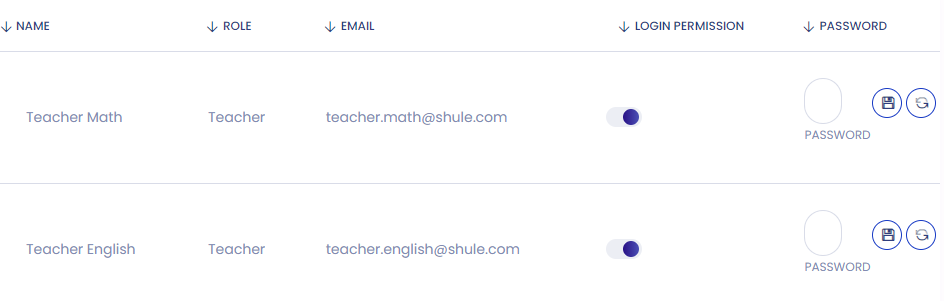
- Here you can edit the password of user
Communication
- Here you can manage communication settings (e.g. passwords, notifications)
Here will be a part where all the reports will be included.
Student Report
- Access to view student transport report
- View homework evaluation report
- View student report assessment
- View Guardian report
- Student report
- Class routine
- Student attendance report
- Subject wise attendance report
- Previous records of the student
Exam Report
- Access to view exam routine
- Merit list report
- Mark sheet report
- Tabulation sheet report
- Progress card report
- Progress card report 100
- View previous result
Staff Report
- A list of staff attendance report
- Payroll report of staff
FEES Report
- Waiver report
- Wallet report that tells the amount that has been used
- Fees due report based on the fees paid by student
- Payment report
- Balance report to show amount remain
Accounts Report
- Payroll report
- Report of transaction that has been made
Fees Settings
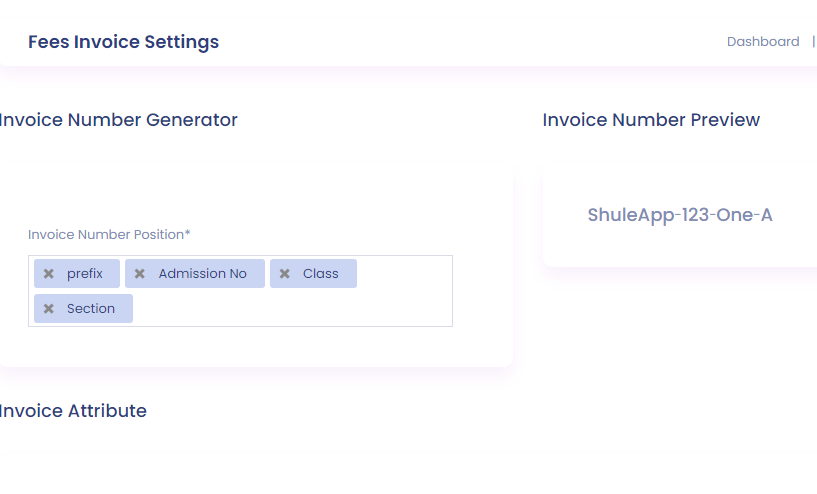
- Fees invoice setting can be set here
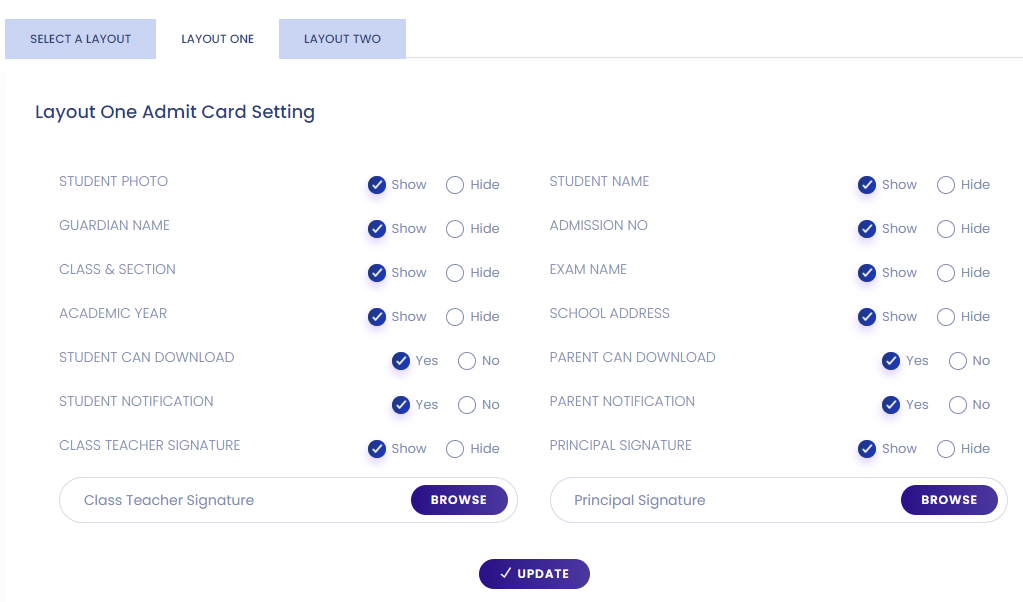
- Admit card setting and criteria you want
- Set setting for seat plan
- Set up for exam rules
- Format setting, erase all the settings
- Exam signature setting
- Position
- All exam position
Custom Field
- For the Shule app, custom fields allow administrators to tailor the registration process according to specific requirements or additional information they need to collect from students, parents, or other users
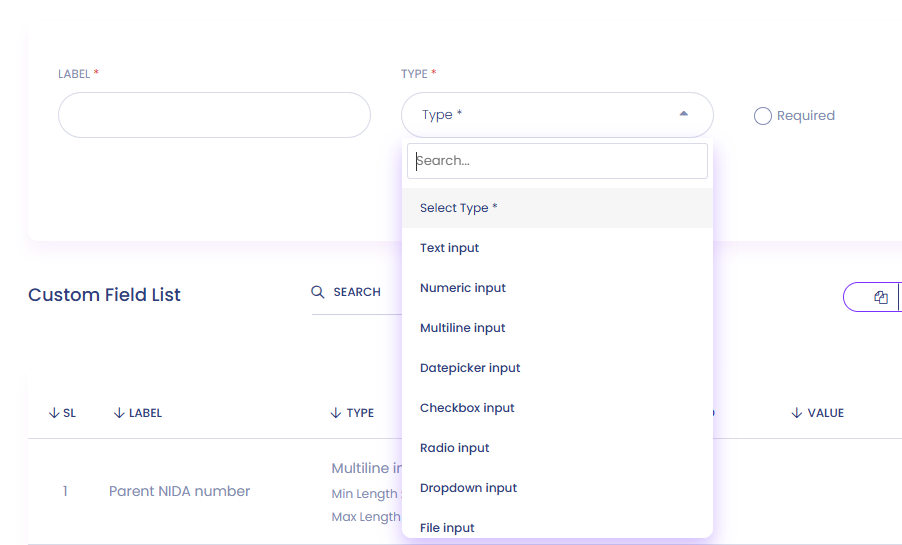
- Selected criteria that will be necessary for student registration
Contact
If you need further assistance, please contact our support team.
